live-queue-player
Pocket Tandas: Live Queue Player



Description
This player can be used as a backup for Tango DJs. Your smatphone only needs to have 3.5mm output to connect it to the mixer in case your laptop breaks, or you just want to DJ at open air event.
On your SD card, prepare folders with your tango music and cortinas, optionally with tandas saved as m3u8 playlists in a software like foobar2000. Note that you must save your playlists to a folder containing your music, either directly or in subfolders. Playlists are regular text files containing relative paths to music files. Add replaygain info to your files, fill tags like Date, Genre, BPM, lyrics.
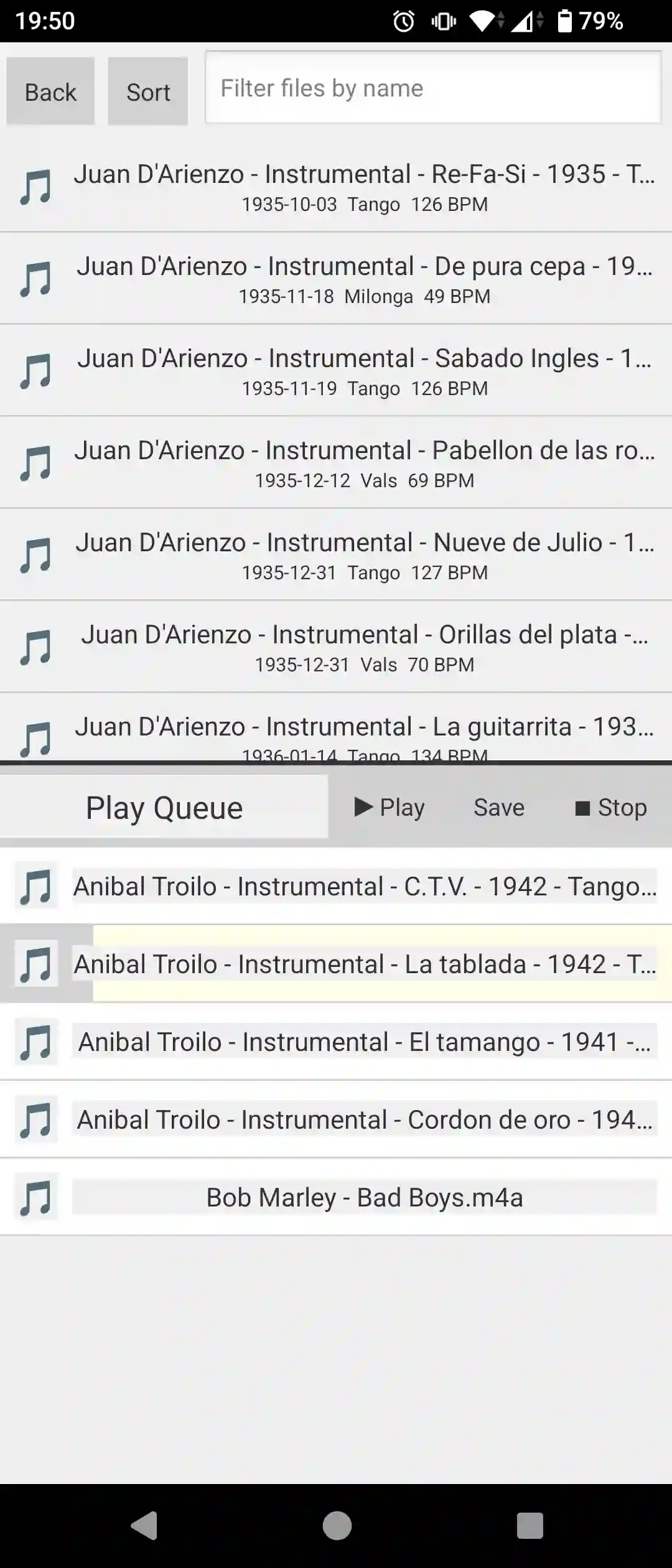
Main app window
The main app window is divided into to parts: on the top you find file browser, on the bottom there is play queue. Tapping an audio file or playlist in the browser adds it to the play queue. Tapping a track in play Queue starts its playback. When playback is active, if you want to play another track you must first stop the playback. playback is stopped with 10 second fade out (useful for cortinas). If you pressed Stop accidentally, just press Play while fade out is still running. Swipe right to remove a track from the queue.
Prelistening when multiple outputs available
When several outputs are available (3.5mm, bluetooth, usb audio), it is possible to pre-listen audio tracks directly in filebrowser.
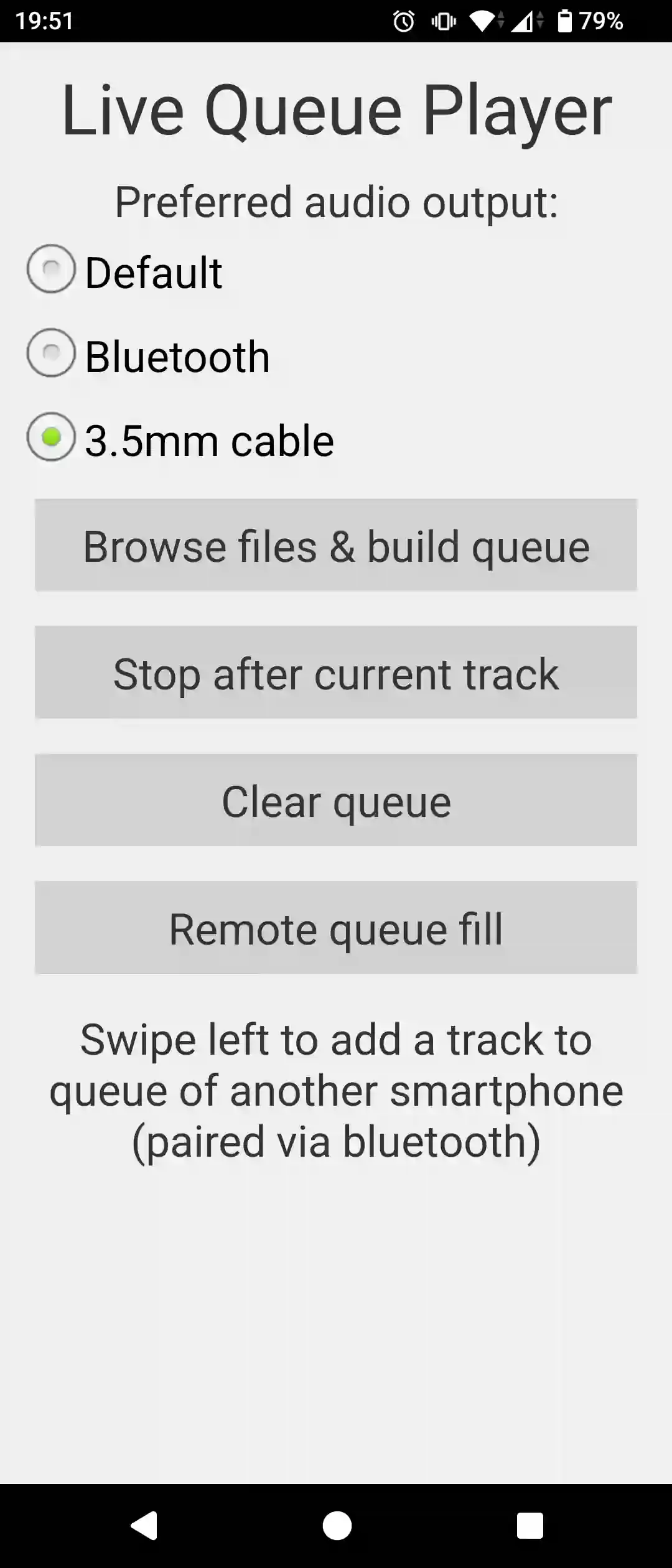
Audio preview is routed to the secondary output, which is different to the preferred one. For example, you can select 3.5mm as preferred and use it to play music for the audience, while pre-listening tracks in your bluetooth headphones or earbuds.
Explicit selection of Bluetooth as preferred output is only possible on Android 14+. On older Androids, select ‘Default’.
Audio preview and queueing from a second smartphone
You can use a second smartphone for prelistening, and adding tracks to the main phone queue via bluetooth. For this to work, add your tango music and cortinas to both smartphones. Filenames of audio files should match, and ideally folder structure as well (but not necessarily). Pair both your smartphones together. Then, enter “Remote queue fill” mode. On your main phone select “Receive requests”. Use it normally for playing sound for the room. On the second phone, select “Send requests”. Swipe left any track in the play queue, and if a track with such filename is found on the main phone, it will be added to its play queue.
Installation
Supports Android 7.0+


screenshot
Development
To compile the app, run the following:
./gradlew assembleDebug
You will need a keystore.properties file on the ROOT FOLDER of the project.
See Dockerfile for more details.
Alternatively, you can compile the app using the build GitHub action.
If you want to contribute by making code changes, you are welcomed!
For starters, check how to download/run the source code
Issues
Issues and pull requests are always welcome!
Since we do not have telemetry in the app, we rely on you to report issues and give feedback.
You can submit issues the following ways:
- via Github Issues
- via facebook: https://www.facebook.com/shaforostoff
Important
Please read the license!